
Switching from Fresha or Booksy: Import Your Client List into LakoTermin
October 9, 2026
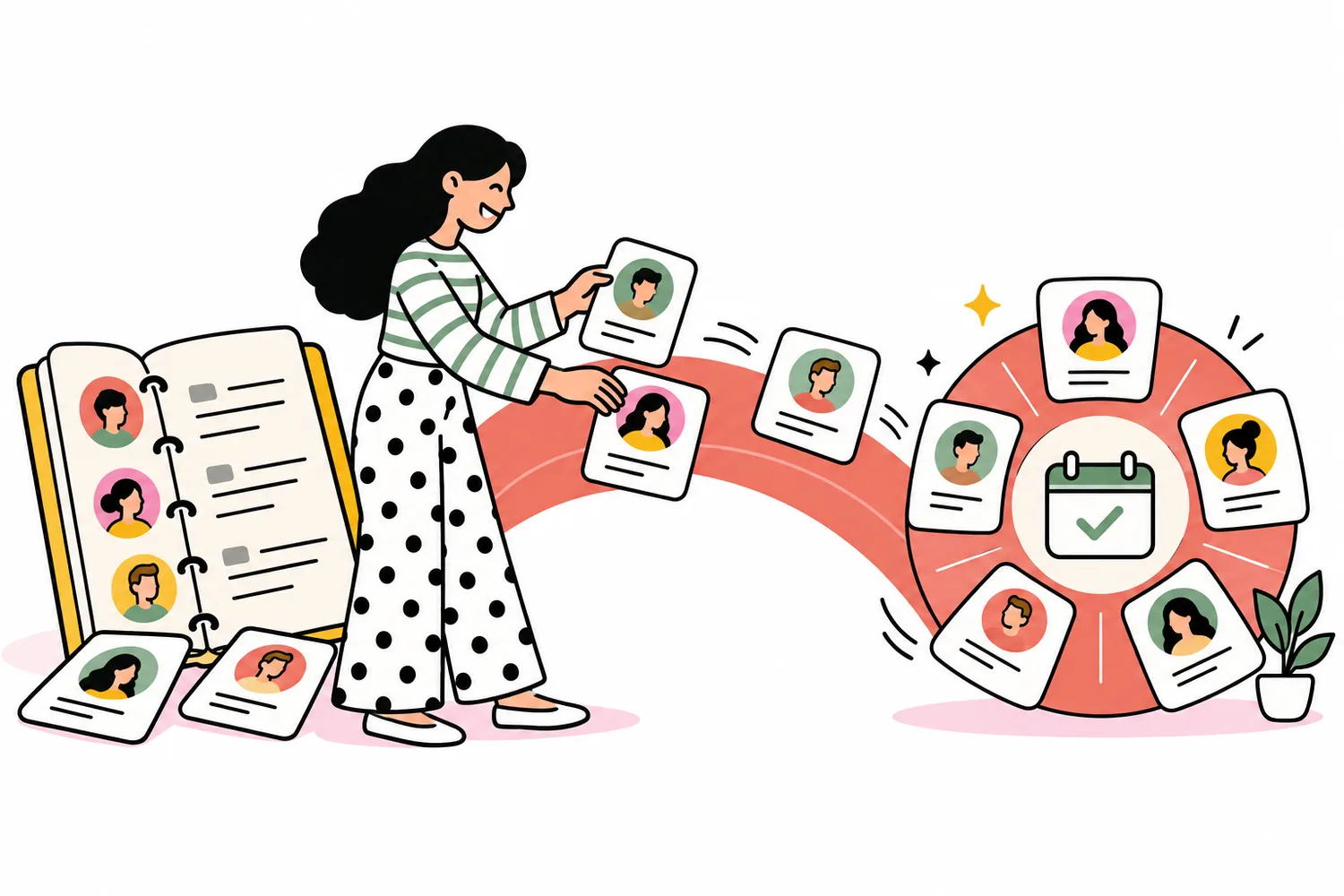
You may be ready to switch from Fresha or Booksy, but one thing holds you back: your client list. Years of phone numbers, email addresses and useful notes are stored in your current booking platform. Copying every contact into another system sounds like a project for several evenings.
LakoTermin now supports client list imports from CSV and Excel. Export your contacts, select the file, review the columns and confirm the import. You can bring familiar clients into your new salon booking software without rebuilding each record by hand.
You built those client relationships through your work. Changing booking software should not mean starting your contact database again.
What you can import into LakoTermin
The importer supports first name, last name, phone number, email, notes and tags. Accepted formats are CSV, XLSX and XLS. It recognises common column headings in English, Serbian and Russian, and you can change the mapping manually.
Russian CSV files using windows-1251 encoding are supported too. If a report title appears above the table, the importer looks for the header within the first ten rows. For Excel files, it reads the first worksheet, so place your client table there.
This imports client contacts, not your entire previous account. Appointments, past visits, staff and services do not move with this file. Set up services, team members and working hours separately in your company settings. The amount of setup depends on your salon.
How to export your client list
Moving from Fresha
On desktop, go to Clients → Clients list → Options and choose CSV or Excel. On mobile, use the Actions menu with three dots. Your account needs permission to download clients. See Fresha’s official export guide.
Getting your contacts from Booksy
Ask Booksy support for a CSV file containing your client contact details. Some versions also offer an export button in the client section. Use the support channel for your account, as contact details can differ by region.
DIKIDI, YCLIENTS/Altegio and SrediMe
In DIKIDI, open the client list, select the three-dot menu and choose CSV or Excel. Export requires Creator access. Refer to DIKIDI’s export instructions.
For YCLIENTS/Altegio or SrediMe, look for export in the client section or ask support for a CSV or Excel file. Request names, contact details and, where available, notes and tags. The columns do not need a special order: you can review their mapping during import.
Import your client database in five steps
- Export your client list from your previous platform as CSV or Excel. Keep an original copy.
- Open Clients → Import from file in LakoTermin. If you manage several companies, select the company that should receive the contacts first.
- Select the file and review the column mapping. Check that phone numbers, email addresses, notes and tags match the correct fields.
- Review the first five rows and the count of clients ready to import. Correct any mapping errors before continuing.
- Confirm the import. The result shows how many clients were added, updated or skipped.
With a prepared file, this can take a couple of minutes. Obtaining the export from your previous platform or correcting source data may take longer.
How duplicate matching and existing records work
Clients are matched primarily by phone number, or by email when no phone number is available. Serbian numbers written as 060… and +381 60… are recognised as the same number. Reimporting the same file with unchanged contact details does not create new duplicates.
Two different phone numbers are not merged simply because they share an email address. This helps keep family members separate when they use one email account.
For an existing client, the importer adds missing contact details, additional notes and tags. The saved name and blacklist status are preserved. Importing enriches your records; it does not automatically replace an incorrect number already stored in a card.
Rows without a usable phone number or email are skipped. A name alone cannot reliably identify someone when they book. Review those rows and add contacts you already have. The preview checks how data is arranged, but does not verify that every number belongs to the named person.
What happens to your file
The file is parsed directly in your browser. After confirmation, only the selected client fields are sent to LakoTermin, rather than the original spreadsheet and all its extra columns. Review your notes before importing and keep information relevant to your work.
What to do after moving your contacts
Your imported clients will appear in the client database. Use tags to organise them, keep private salon notes and manage online booking access through the blacklist. Visit history, total spend and average bill build up from new appointments in LakoTermin. Historical financial data from your previous platform is not recreated by this import.
Next, set up WhatsApp and Telegram reminders. Importing a phone number does not connect a messaging account or replace client consent. Notification channels and contact verification are configured separately.
Before fully switching, add upcoming appointments separately, check your services and staff schedules, make a test booking and replace the booking link on your website and Instagram profile. Your familiar contacts will be available while new bookings enter an accurate schedule.
Read the detailed client import guide in your owner account.
Try LakoTermin with your existing client list
Try LakoTermin free for 14 days. Import your contacts on day one, set up your schedule and see how the service works for your salon and its regular clients.