
A QR Code Booking Poster for Your Salon Door in Five Minutes
September 12, 2026
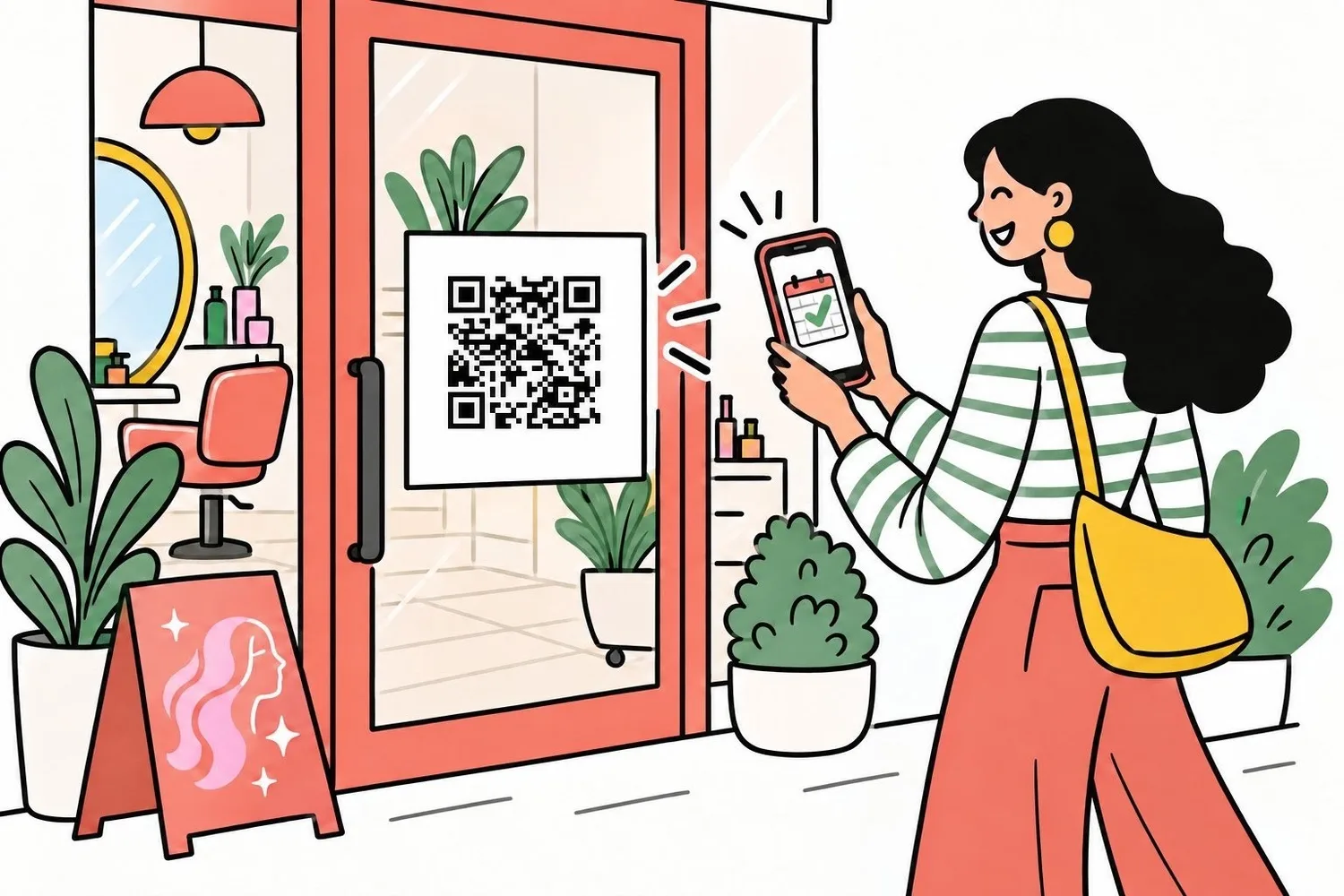
A client walks up to your door at nine in the evening, after you have closed. Or waits in line while you are busy with someone else. Or simply walks past and thinks, “I should get a haircut.” In all three cases the phone is already in their hand — and what happens next depends on what they see on your door.
A QR code for appointment booking turns that passing thought into an entry in your calendar. The person points their camera at it, lands on your online booking page and picks a slot that is genuinely free — no call, no messaging, and nothing for you to do.
Here is how to make that poster in LakoTermin, which size suits which spot, and how to print it so the code actually scans.
Why a salon needs a QR code on the door
A link in your profile bio only works for people who have already found you online. A poster works for everyone else: neighbours on your street, passers-by, people who arrive at a closed door, and the client sitting in your chair who wants to book the next visit before they forget.
What changes in practice:
- Bookings keep coming after hours. The door is locked, but the calendar is still filling up: in the evening, on Sunday, while you are away.
- The phone rings less. Some bookings move to self-service, so you stop interrupting one client to answer another.
- Nothing has to be dictated. Nobody writes down a web address correctly over the phone on the first try — a code is simply pointed at.
- The client sees the real schedule. They choose from slots that are actually open, so double bookings cannot happen.
How to make the poster in LakoTermin
The generator is built into the dashboard, so no separate QR code service is needed.
- Open Dashboard → Extras → Poster.
- Pick the company, the sheet size and the background colour. The logo can be shown or left off.
- Choose the language of the page that opens after scanning: Serbian, Russian or English.
- Click “Print / Save as PDF” — your browser's own print dialog opens. The same dialog saves a PDF you can send to a print shop.
Poster settings are remembered, so a second copy or a different size takes two clicks.
Which size to choose
The poster size depends on one thing: the distance from which it will be scanned. A simple rule of thumb: a comfortable scanning distance is approximately ten times the width of the code. A code 10 cm wide reads reliably from a metre away; a 6 cm code reads from 60 centimetres.
- A6 (105×148 mm), 60 mm code — for the reception counter, a mirror or the till. Scanned at arm's length.
- A5 (148×210 mm), 95 mm code — the all-purpose choice for the front door. It reads from about a metre, which is exactly where someone stops in front of a door.
- A4 (210×297 mm), 140 mm code — for a shop window, where people scan from the pavement, through glass, in passing.
The sheet is laid out in millimetres, so the printed code comes out at exactly the promised size — as long as you do not let the printer shrink it.
How to print it so the code scans
- Set page margins to zero. Choose “Margins: none” in the print dialog. Otherwise the browser squeezes the sheet to fit its own margins and the code ends up smaller than intended.
- Plain white paper above 120 gsm, or matte stock. Gloss and lamination create glare, and glare is the main reason a camera fails to see a code.
- Never stick anything over the code. Tape around the edges is fine; tape across the code is not.
- Hang it at eye level, roughly 140–160 cm off the floor. Nobody scans a code down by their knees.
- Test it with your own phone before putting it up: step back to the distance your clients will use and point the camera.
Why the poster is in three languages
Serbia means local clients, Russian-speaking newcomers and tourists, and all three walk past the same door. So the sheet is captioned in all three at once: Zakažite termin onlajn, Записывайтесь онлайн, Book online. One sheet instead of three, and nobody walks past assuming the notice is not for them.
You choose the language of the page that opens after the scan — useful when your clients mostly read one language.
Where else to put the code
The door is the obvious spot, not the only one. The same PDF prints and sticks anywhere: on the mirror in front of the chair (clients book their next visit while sitting), on the counter, in the window from the outside, on business cards and flyers, next to the price list. In the café or shop next door, if you are on good terms with your neighbours.
Frequently asked questions
Does the client need a special app?
No. The camera on any modern phone recognises a QR code by itself — point it and tap the link that appears.
What happens to a printed poster if I rename my salon?
It keeps working. The page address changes along with the name, but the old address stays attached to your company and forwards to the new one automatically. There is no need to reprint your sheets.
Is the poster included in my plan?
Yes. The generator is available on every plan and during the trial. There is nothing extra to pay for: you print the sheet yourself or hand the PDF to a print shop.
How many posters can I make?
As many as you like. If you run several locations, each gets its own code pointing at its own booking page.
What if someone scans the code outside working hours?
They see your schedule and book the next free slot. That is the whole point of putting it on the door.
The fastest way to find out is to print one sheet and leave it on the door for a week. Create an account free for 14 days, set up your services and schedule, and print your first poster — it takes less than half an hour.